How to Fix MacBook Notch Menu Bar Icons
Find menu bar icons hidden behind the MacBook notch, open them from the keyboard, and understand what Accessibility permission lets Notchless do locally.
The MacBook notch solved one screen problem and created another: the menu bar can run out of usable space long before your menu bar apps stop running. Battery tools, launchers, VPN clients, audio utilities, calendar helpers, and sync apps may still be active, but their icons can be crowded under the notch or pushed out of reach.
Notchless is built for that moment. It gives hidden and visible menu bar apps a keyboard-first way back into view, while keeping the scan and open action local on your Mac.
Why menu bar icons hide behind the notch
macOS lays out menu extras and menu bar apps inside a fixed strip. On notched MacBooks, the camera housing removes a chunk from the middle of that strip. If the active app has a long menu, or if you run many menu bar utilities, macOS may have less room than it appears to have.
The important part is that a missing icon does not always mean the app quit. Many menu bar apps are still running; the visible icon is simply clipped, crowded, or unavailable to click with the pointer.
Open hidden icons with Quick Open
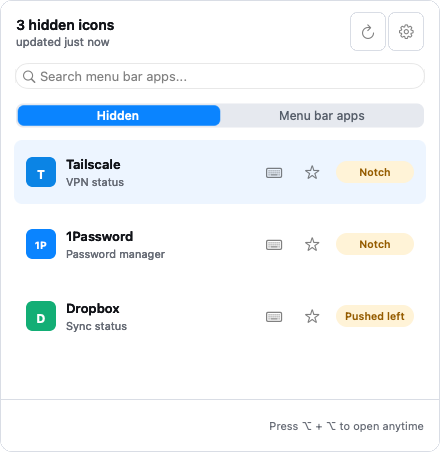
Notchless scans the menu bar items that macOS exposes through Accessibility. Quick Open then lists the menu bar apps it can find, including items that are hard to click or visually hidden by the notch.
The workflow is simple:
- Open Quick Open with your global Notchless shortcut.
- Type part of the menu bar app name.
- Choose the app and press Return.
- Notchless triggers the original menu bar item, so you still use the app's own menu or popover.
This is useful when the icon is behind the notch, when it is visible but far away, or when you simply prefer not to hunt for tiny icons with the cursor.
Use direct shortcuts for frequent apps
For menu bar apps you open many times a day, Quick Open is not the only path. Notchless also lets you assign direct shortcuts to frequently used menu bar apps. A direct shortcut skips search and opens that specific app's menu bar item immediately.
This works well for utilities such as calendar, clipboard, VPN, focus, or audio controls: anything that is easier to recall by keyboard than by pixel-hunting along the top edge of the screen.
What Notchless can and cannot open
Notchless does not pretend every system menu extra is openable in every state. It depends on what macOS exposes through Accessibility and what the target menu bar item allows. Some Apple system items and unusual third-party menu extras may not provide an action that can be triggered reliably.
When an item is exposed, Notchless keeps the action local: scan, search, and open happen on your Mac. Accessibility permission is required because macOS protects the ability to inspect and interact with interface elements across apps.
A practical checklist
- Grant Accessibility permission to Notchless in System Settings.
- Use Quick Open to find hidden and visible menu bar apps from the keyboard.
- Add direct shortcuts for the apps you open most often.
- Keep expectations realistic for protected system extras that macOS does not expose as regular menu bar actions.
That combination gives you a calmer menu bar without requiring you to rearrange every utility or quit useful background apps.