Open Mac menu bar apps from your keyboard
Find menu bar icons hidden behind the MacBook notch, open any menu bar app from your keyboard, and give frequent tools their own shortcuts.
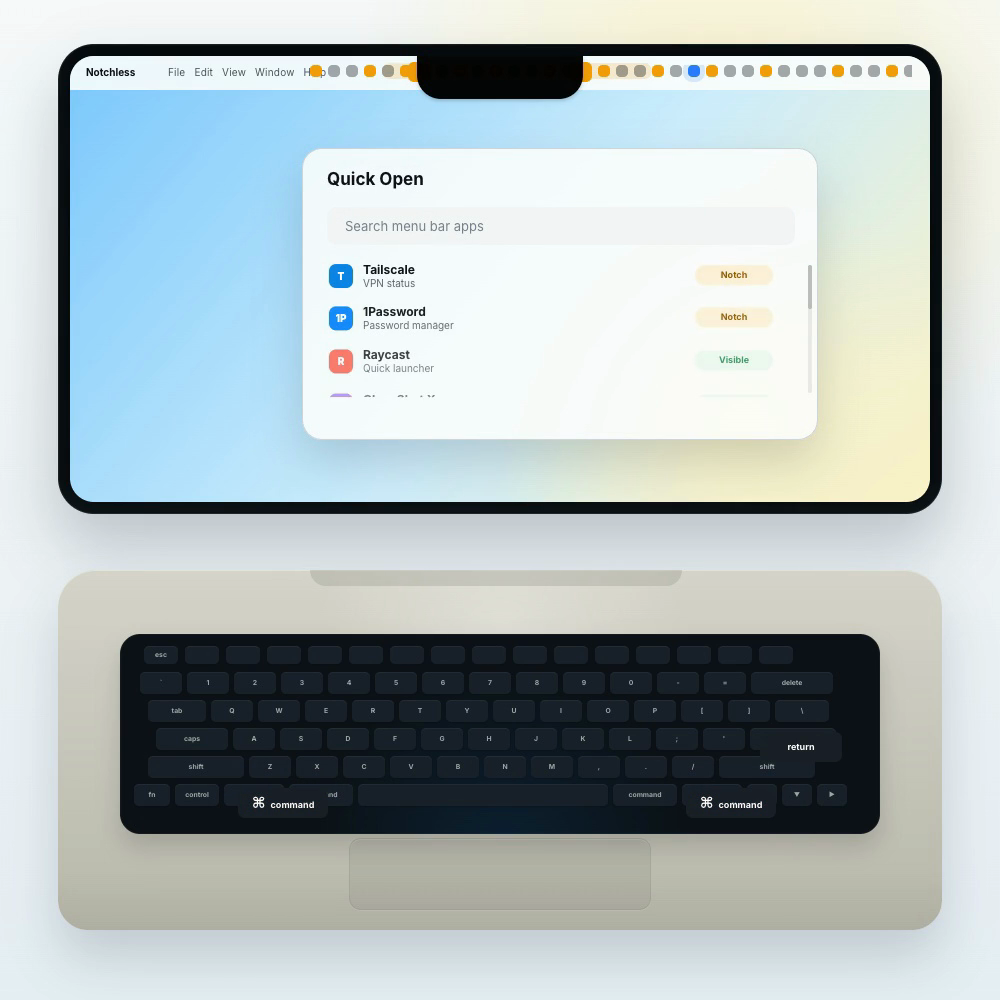
The menu bar app is still running, the icon is just hidden
On a MacBook with a notch, menu bar icons can disappear before the app actually quits. Notchless finds the menu bar apps macOS still exposes through Accessibility and puts them back on a keyboard path.
The menu bar app is still there
Notchless looks for the live menu bar item instead of making you relaunch the app and guess what happened.
The notch changes what you can reach
When menu bar icons are hidden behind the notch or crowded out, Quick Open can still list the apps macOS exposes through Accessibility.
Less cursor hunting
Use the keyboard for repeated menu bar tasks and save the pointer for the work that actually needs it.
Find it, then open any menu bar app
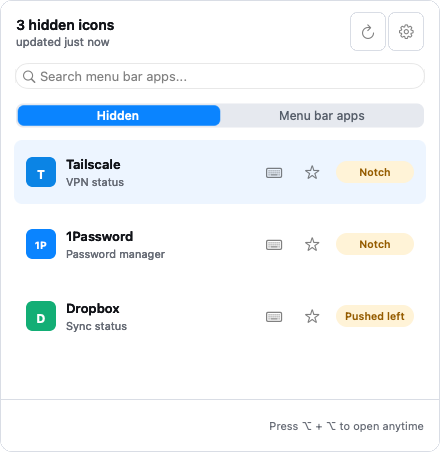
Quick Open turns the Mac menu bar into a searchable launcher, so you can find icons hidden behind the notch, search visible menu bar apps, and open the original menu bar item from the keyboard.
01
Scan menu bar apps
Notchless reads the accessible menu bar items on your Mac, including icons hidden behind the notch or pushed out by a crowded menu bar.
02
Search from the keyboard
Open Quick Open, type a few letters, and find the menu bar app you want without steering across the top of the screen.
03
Open the original item
The selected app's own menu item opens, so you keep the familiar menu and status controls.
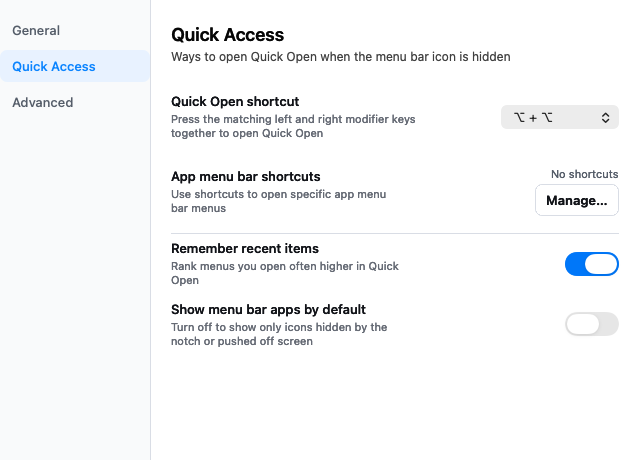
Search with Quick Open, then jump straight in with app shortcuts
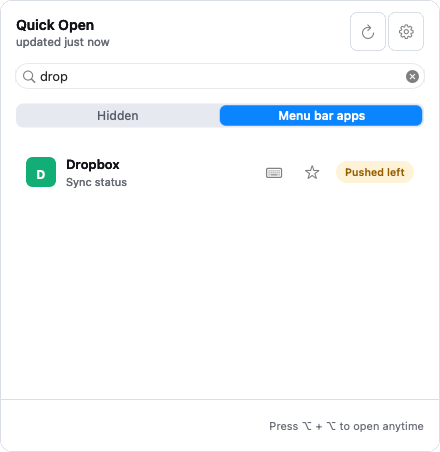
Use one global shortcut to search any menu bar app, then add direct app shortcuts for the menu bar tools you open every day, whether their icons are hidden behind the notch or sitting in plain sight.
Quick Open shortcut
One keyboard launcher for hidden and visible menu bar apps. Search first, then open.
App shortcut
A dedicated key combo for one specific menu bar app, separate from the global Quick Open shortcut.
The menu bar app launcher for the notch era
Notchless focuses on the real daily annoyance where the menu bar icon is still there, but the Mac menu bar no longer lets you reach it comfortably.
Notch-aware recovery
Find menu bar icons hidden behind the notch or pushed out by crowded system items.
Quick Open
A keyboard launcher for any detected menu bar app, whether the icon is hidden or visible.
App shortcuts
Assign direct shortcuts to the menu bar apps you reach for most.
Local-first scan
Scanning and opening happen on your Mac through macOS Accessibility.
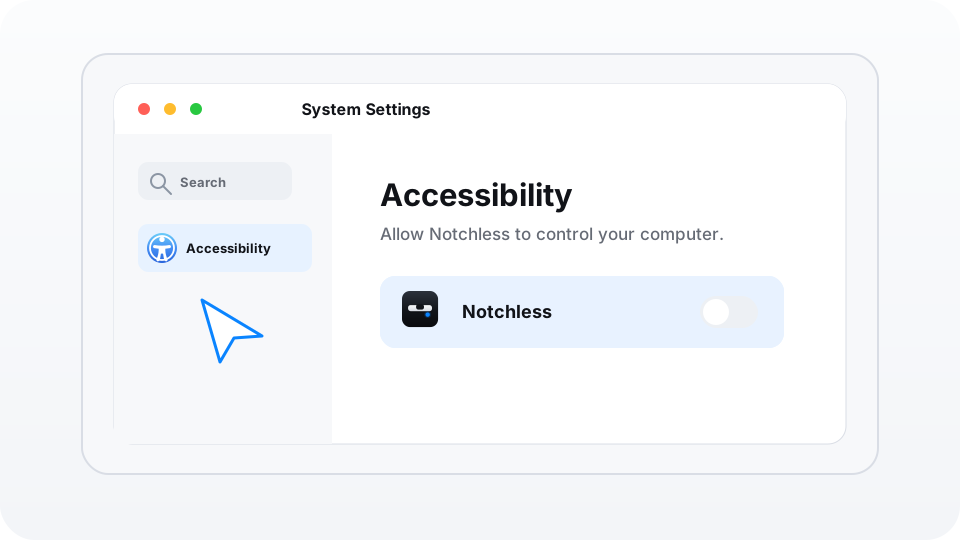
Only one Accessibility permission
Notchless needs Accessibility permission to scan menu bar items, find hidden icons, and open the menu bar app you choose.
Scanning and opening stay on your Mac, with no screen recording and no uploaded menu bar contents
Blog and product updates
Read about MacBook notch menu bar icons, keyboard-first menu bar workflows, and new Notchless releases.
Why the MacBook Notch Hides Menu Bar Icons, and How Notchless Solves It
Understand why MacBook notch menu bar icons disappear, why menu bar icons hidden behind the notch are often still running, and how Notchless helps you recover them and open menu bar apps from the keyboard.
How to Fix MacBook Notch Menu Bar Icons
Find menu bar icons hidden behind the MacBook notch, open them from the keyboard, and understand what Accessibility permission lets Notchless do locally.
Open Mac Menu Bar Apps from the Keyboard
Use Notchless Quick Open to search and open Mac menu bar apps from the keyboard, including icons that are visible, crowded, or hidden by the notch.
Frequently asked questions
Answers about Mac menu bar icons hidden behind the notch, keyboard access, permissions, privacy, and installation.
Bring Mac menu bar apps back to your keyboard
Open the download page, review the install steps, and bring hidden or visible menu bar apps back under keyboard control.