Open Mac Menu Bar Apps from the Keyboard
Use Notchless Quick Open to search and open Mac menu bar apps from the keyboard, including icons that are visible, crowded, or hidden by the notch.
Menu bar apps are convenient until the thing you need is a tiny icon at the far edge of the screen. If you use a trackpad, an external display, or a notched MacBook with many utilities, opening a menu bar app can become a small interruption repeated all day.
Notchless turns that interaction into a keyboard workflow.
Quick Open for menu bar apps
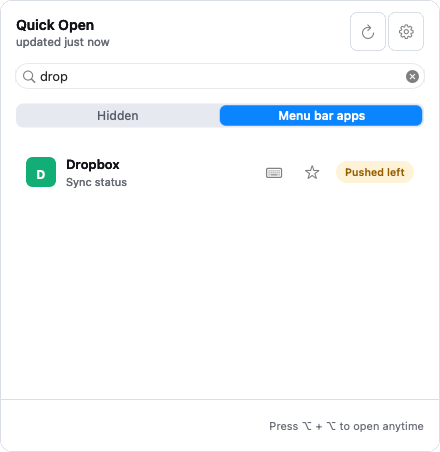
Quick Open is a small command palette for Mac menu bar apps. Instead of steering the pointer across the menu bar, you press a shortcut, search by name, and open the original menu bar item.
It works for visible items and for items that are difficult to reach because the menu bar is crowded or the MacBook notch is in the way. The app still opens its own menu or popover; Notchless is not replacing the target app's interface.
Search first, then open
The most reliable keyboard workflow is:
- Press your Notchless Quick Open shortcut.
- Type a few characters from the menu bar app name.
- Use the arrow keys if more than one item matches.
- Press Return to open the selected menu bar item.
That gives you one remembered shortcut for the whole menu bar. It also means the workflow stays useful as your menu bar changes over time.
Direct shortcuts for high-frequency apps
Some menu bar apps are worth opening even faster. Notchless lets you assign direct shortcuts to frequently used menu bar apps, so a specific app opens immediately without going through search.
Use Quick Open for discovery and occasional apps. Use direct shortcuts for the menu bar tools that are part of your daily rhythm, such as clipboard history, VPN, calendar, audio controls, focus modes, or screen utilities.
Local-first behavior
Notchless scans and opens menu bar items locally through macOS Accessibility. Accessibility permission is required because macOS protects cross-app UI inspection and interaction.
The practical benefit is that your keyboard workflow does not depend on a cloud lookup. Notchless reads what your Mac exposes, filters it by name, and triggers the original item on the same machine.
Know the boundaries
Not every menu extra behaves like a standard app menu bar item. Some system items and custom third-party controls may not expose an open action that Notchless can trigger. When macOS exposes a usable menu bar item, Notchless can make it searchable and keyboard-accessible; when it does not, Notchless avoids pretending it can control something the system has not made available.
For the everyday mess of visible, hidden, and crowded menu bar apps, that keyboard path is usually the difference between a quick action and a lot of pointer travel.