Why the MacBook Notch Hides Menu Bar Icons, and How Notchless Solves It
Understand why MacBook notch menu bar icons disappear, why menu bar icons hidden behind the notch are often still running, and how Notchless helps you recover them and open menu bar apps from the keyboard.
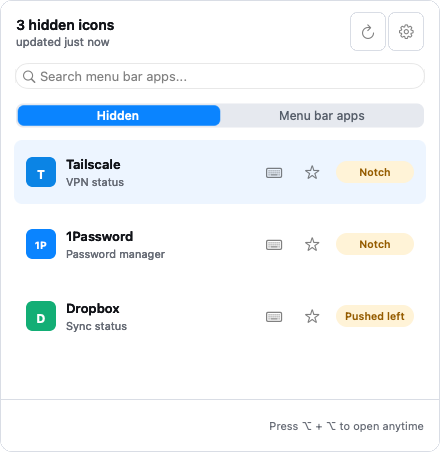
People describe this problem in a few different ways: MacBook notch menu bar icons disappearing, menu bar icons hidden behind the notch, or a menu bar app that is clearly running but impossible to click. They are all describing the same experience: the app is still there, but the menu bar has stopped being a reliable place to reach it.
That is the problem Notchless is built for. Notchless is not trying to become a full menu bar organizer. It is a menu bar app launcher plus notch recovery: a faster way to find the icon that got crowded out, and a better keyboard path for opening any menu bar app you use often.
The notch did not create the problem from nothing
The Mac menu bar was already a tight space before the notch arrived. The current app wants room for its menus on the left. System status items want space on the right. Third-party menu bar apps fill whatever remains. Add a smaller display, scaled resolution, or an app with long menu names, and the available strip gets tight quickly.
The notch makes that constraint visible. On a notched MacBook, the camera housing interrupts the center of the bar, so the menu bar is no longer one continuous line of usable space. The practical result is familiar: one day your VPN icon is there, the next day your calendar, audio tool, or clipboard manager seems to vanish.
That is why the issue feels inconsistent. An icon may show up on an external display, disappear when you switch to an app with longer menus, then reappear later when the layout pressure changes. The app did not become unreliable. The menu bar did.
Hidden does not mean closed
This is the part that confuses people most. When a menu bar icon disappears, the instinct is to relaunch the app or hunt through Activity Monitor. Sometimes that helps. Very often, though, nothing crashed and nothing quit.
The menu bar app is still running. Its visible entry point is what failed.
For modern Mac workflows, that is more than a cosmetic annoyance. Menu bar apps often control the small actions that keep work moving: joining a meeting, changing audio output, toggling VPN, checking a timer, grabbing clipboard history, or opening a calendar. When the icon is gone, the friction shows up over and over in tiny interruptions.
What users actually need is recovery, not decoration
There are two separate jobs in this moment.
First, you need a way to recover an icon that is still present but no longer clickable because it is crowded out or sitting behind the notch.
Second, you need a faster path for the icons that are technically visible but still annoying to reach. Even when nothing is hidden, moving the pointer to a tiny control at the top edge of the screen is slow compared with a good keyboard workflow.
Notchless is designed around those two jobs. It is deliberately narrower than a full menu bar manager, and that is the point. The goal is not to redesign macOS. The goal is to make your existing menu bar apps reachable again.
How Notchless solves the MacBook notch menu bar icons problem
Notchless has two core abilities.
1. Find icons hidden behind the notch and open them
Notchless scans the menu bar items that macOS exposes through Accessibility. That gives it a local, searchable view of menu bar apps it can detect, including items that are visually hard to reach or effectively hidden by the notch.
Open Quick Open, type part of the app name, press Return, and Notchless triggers the original menu bar item. You still land in the target app's own menu or popover. Notchless is not imitating the app; it is giving you a reliable way back to it.
For anyone dealing with menu bar icons hidden behind the notch, this is the recovery path that matters: find the item by name instead of by pixels.
2. Find any menu bar app and open it from the keyboard
The second capability matters just as much. Notchless is useful even when the icon is visible, because the keyboard can be the better interface.
Quick Open lets you open menu bar apps from the keyboard with one remembered shortcut. Instead of scanning the top of the screen, you search by name and open the app directly. This works for hidden items, crowded items, and completely normal visible items.
For the apps that are part of your daily rhythm, Notchless goes one step further: you can assign direct shortcuts to specific menu bar apps. That means your calendar, clipboard manager, VPN, focus timer, or audio control can open instantly without search.
This combination is the real product shape:
- recover what the notch hid,
- search anything in the menu bar,
- and give frequent tools dedicated shortcuts.
Why keyboard access changes the experience
People often think of the notch as a visibility bug. In practice, it is also an interaction problem. A tiny icon can be visible and still be inconvenient. It can be far from the pointer, hard to target, or buried in a row of similar-looking symbols.
That is why opening menu bar apps from the keyboard is not a secondary feature for Notchless. It is half the value. Once every menu bar app has a keyboard path, the notch stops being the only reason to use the product. You keep using it because keyboard access is often better than pointer travel.
What Notchless does not pretend to do
Notchless depends on what macOS exposes through Accessibility and what the target menu bar item allows. Some Apple system extras and some unusual third-party controls do not provide a reliable open action. In those cases, Notchless is constrained by the platform, not by a missing custom UI.
That boundary matters. Notchless is not claiming to control every possible item in every possible menu bar state. It is focused on the large, common class of menu bar apps that are present, detectable, and unnecessarily hard to open.
A calmer way to live with a crowded menu bar
The MacBook notch did not make menu bar apps bad. It exposed how fragile the menu bar becomes once too many useful tools compete for a narrow strip of space.
Notchless gives that space a better fallback. If an icon disappears behind the notch, you can still find it and open it. If an icon is visible but tedious, you can still open it from the keyboard. And if a menu bar app matters every day, you can give it a shortcut of its own.
That is the whole idea: less hunting, less pixel precision, fewer moments where a running app feels lost just because the menu bar ran out of room.