Why Mac Menu Bar Icons Disappear
A practical explanation of why Mac menu bar icons disappear, how the notch and crowded menus affect visibility, and how Notchless helps you find them.
When a Mac menu bar icon disappears, the first instinct is to relaunch the app. Sometimes that helps. Often, though, the app never stopped running. The icon is just no longer reachable in the visible menu bar area.
This is especially common on MacBook models with a notch, where the menu bar has less uninterrupted space than it appears to have.
The menu bar is smaller than it looks
The macOS menu bar has to fit several things at once: the current app's menus on the left, system status items on the right, and third-party menu bar apps in the available space. Long app menus, many utilities, small displays, scaled resolutions, and the MacBook notch can all reduce the usable area.
Once the available area is crowded, macOS may hide or clip items. The app can still be active, receive events, and keep doing work even though the icon is no longer visible.
The notch makes the problem more visible
On a notched MacBook, the camera housing interrupts the center of the menu bar. If you keep many menu bar apps installed, the icon you need may sit in a region that is visually blocked or pushed beyond the area you can comfortably click.
That is why the problem can seem inconsistent. The same icon may be available on an external display, disappear when you switch apps, or return after you quit another menu bar utility.
How Notchless finds menu bar apps
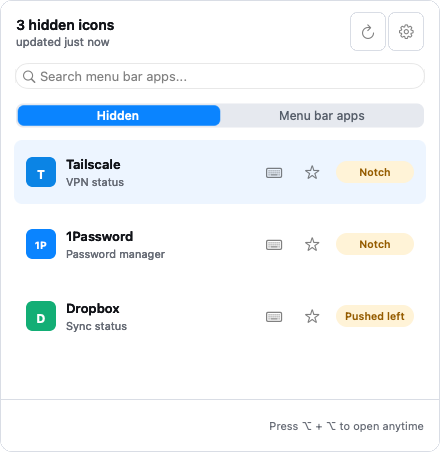
Notchless uses a local-first scan of the menu bar items that macOS exposes through Accessibility. It builds a searchable list of menu bar apps so you can open them from the keyboard, whether the icon is visible, crowded out, or hidden behind the notch.
Quick Open is the general entry point. Open it, type the name of the app, and press Return to trigger the original menu bar item. For apps you use constantly, assign a direct shortcut so the same item opens without search.
Why Accessibility permission is required
macOS requires Accessibility permission before one app can inspect and trigger interface elements in another app. Notchless needs that permission to find menu bar items and open them on your behalf.
The scan and open action happen locally. Notchless is not sending your menu bar list to a remote service as part of this workflow.
Cases where an icon may still not open
Some menu bar items are protected, custom-built, or exposed differently by macOS. Notchless can only work with items that Accessibility can see and that provide a usable action. In those cases, Notchless should be treated as a practical recovery path, not a promise that every system extra is controllable.
If an app is detected, Quick Open and direct shortcuts can save you from repeatedly rearranging the menu bar just to reach it.