Set Shortcuts for Mac Menu Bar Apps
Learn when to use Quick Open and when to assign direct keyboard shortcuts for Mac menu bar apps with Notchless.
A good shortcut removes a decision. If you open the same menu bar app several times a day, searching for the icon is already too slow, even when the icon is visible. On a notched MacBook, it can be worse: the icon may be hidden, crowded out, or awkward to reach.
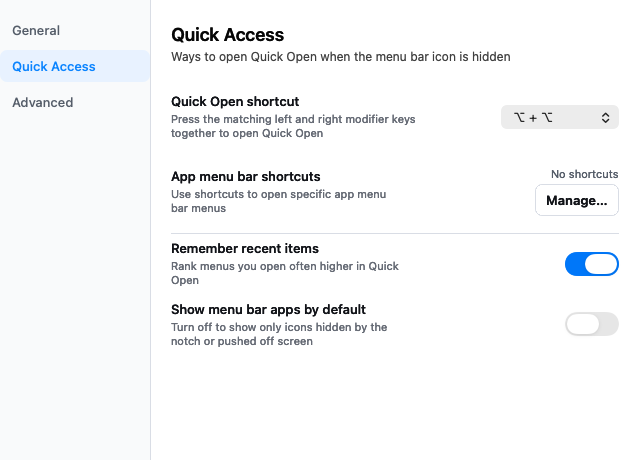
Notchless gives you two keyboard paths: Quick Open for search, and direct shortcuts for the menu bar apps you use most.
Quick Open versus direct shortcuts
Quick Open is the universal launcher. Press one shortcut, type the app name, and open any detected menu bar app. It is ideal when you do not remember exactly what is running or when the item you need changes day to day.
Direct shortcuts are for muscle memory. Assign a specific key combination to a specific menu bar app, and Notchless opens that item's menu or popover immediately. You do not need to search, and you do not need the icon to be visible.
Which apps deserve direct shortcuts
Start with menu bar apps that interrupt focused work:
- Calendar and meeting helpers.
- Clipboard managers.
- VPN and network utilities.
- Audio, microphone, or camera controls.
- Focus, timer, or screen tools.
- Any app whose icon often disappears behind the MacBook notch.
If you only open an app occasionally, leave it in Quick Open. If you reach for it constantly, give it a direct shortcut.
How Notchless opens the target item
Notchless scans the menu bar items macOS exposes through Accessibility, keeps the interaction local, and triggers the selected app's original menu bar item. The target app remains in charge of its own menu, popover, and controls.
That matters because Notchless is not trying to clone every menu bar app UI. It gives you a faster way to reach the interface the app already provides.
Permission and compatibility notes
Accessibility permission is required. Without it, Notchless cannot inspect the menu bar or open items on your behalf.
There are also system boundaries. Some Apple system extras and custom third-party controls may not expose a reliable open action through Accessibility. Notchless can help with the menu bar apps it can detect and trigger; it should not be read as a guarantee that every item in every menu bar state is controllable.
A simple setup pattern
Use one memorable shortcut for Quick Open, then add two or three direct shortcuts for the utilities you open most. Keep the list small at first. The goal is not to memorize a dozen new key combinations; it is to make the most common menu bar actions feel immediate.